Using Zapier with Gram-hosted MCP servers
Using Zapier with Gram-hosted MCP servers
Zapier is a leading automation platform that connects thousands of apps. With the MCP Client by Zapier integration, you can connect Zapier to your Gram-hosted MCP servers, allowing you to trigger tools and actions on your MCP server directly from your Zapier workflows.
This guide shows you how to connect Zapier to a Gram-hosted MCP server using an example Push Advisor API. You’ll learn how to set up the connection, create a Zap that you can interact with in a Slack channel and that uses custom MCP tools to check whether today is a good day to push to production.
Prerequisites
To follow this tutorial, you need:
- Admin access to a Slack workspace
- A Gram account
- A Zapier account (7-day free trial available)
Creating a Gram MCP server
If you already have a Gram MCP server configured (like the Push Advisor from other guides), you can skip to connecting Zapier to your Gram-hosted MCP server.
Setting up a Gram project
In the Gram dashboard , click New Project to create a new project. Enter a project name and click Submit.
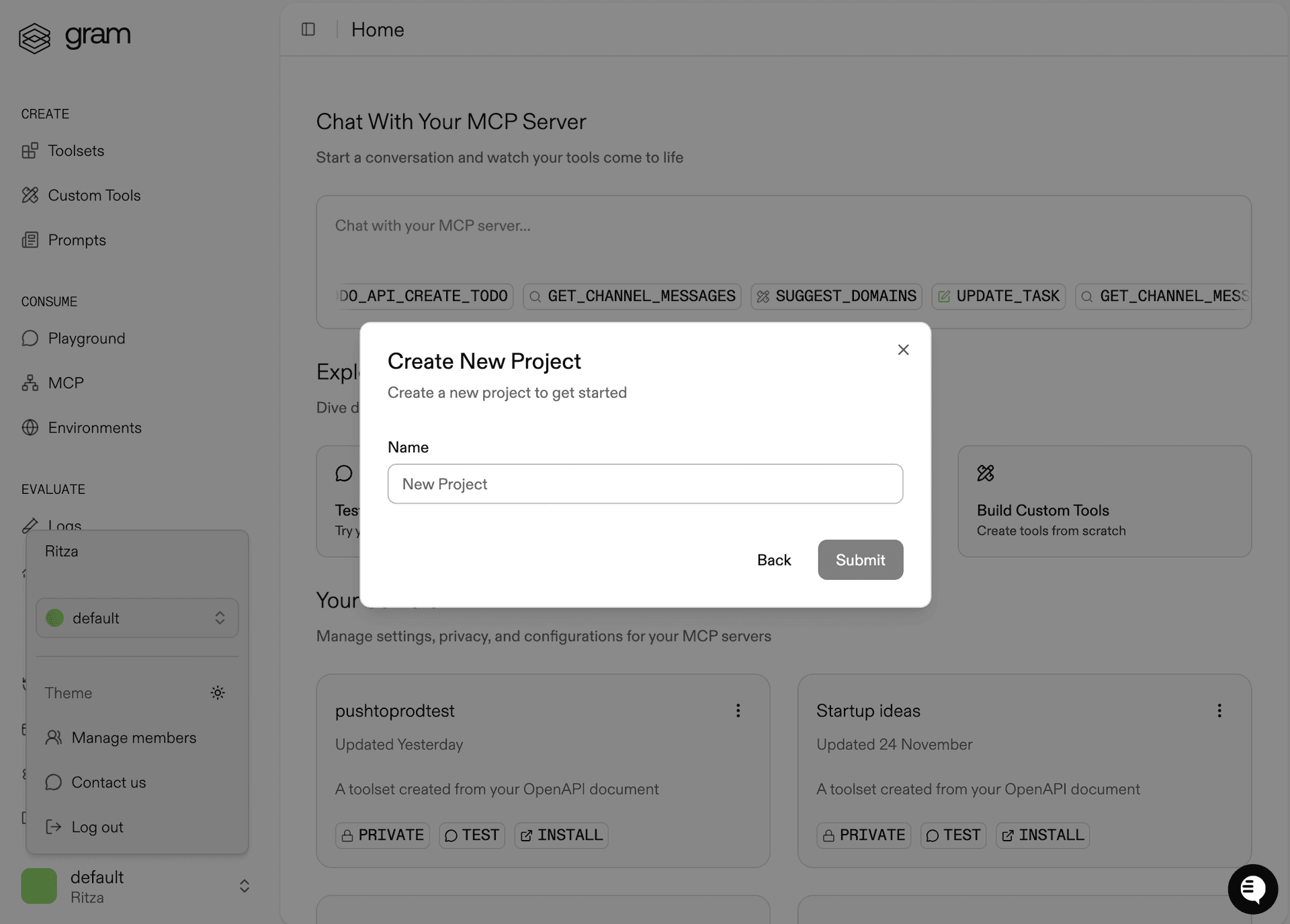
Once you’ve created the project, click the Get Started button.
Choose Start from API. Gram then guides you through the following steps.
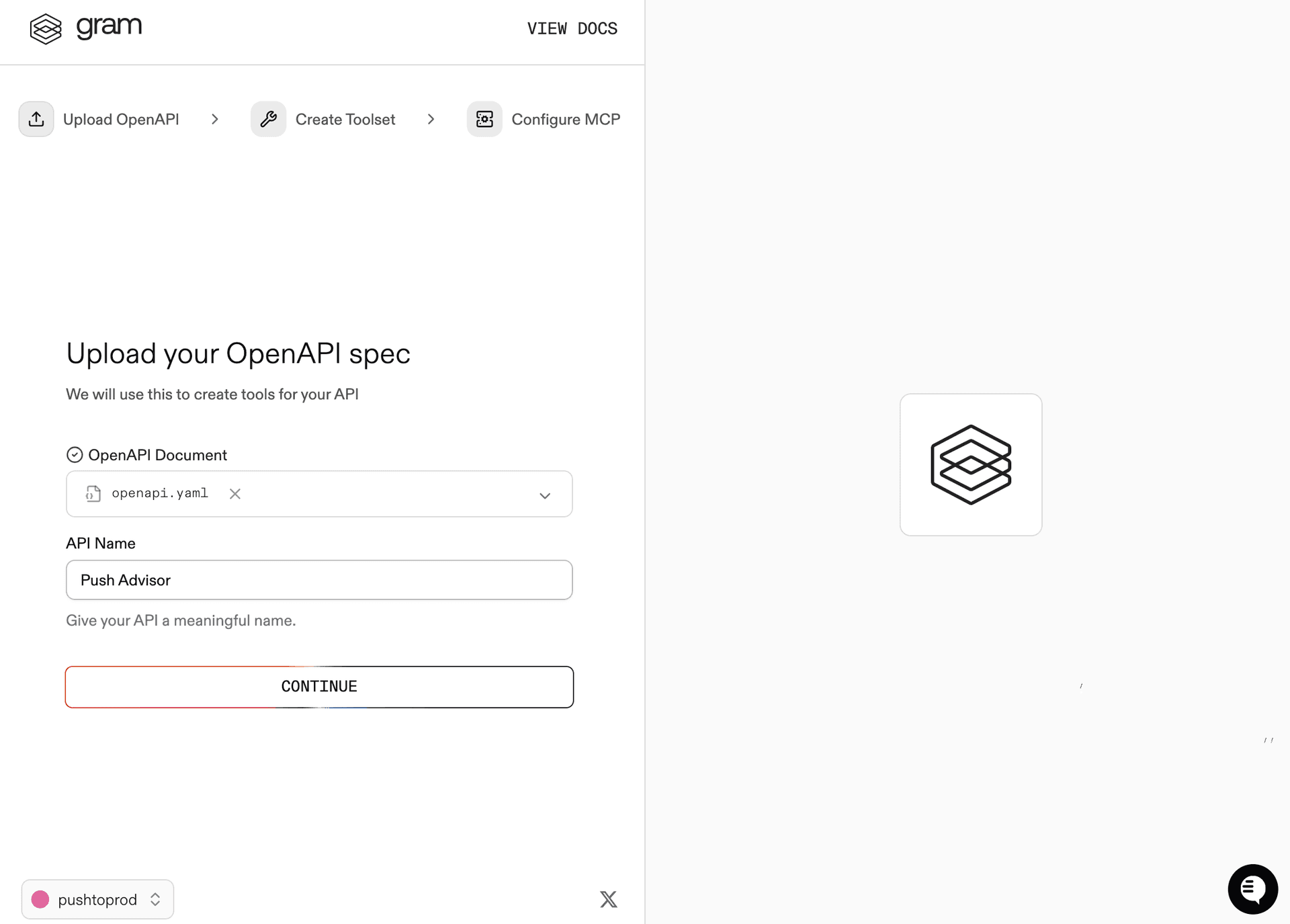
Step 1: Upload the OpenAPI document
Upload the Push Advisor OpenAPI document , enter Push Advisor as the API name, and click Continue.
Step 2: Create a toolset
Give your toolset a name (for example, push_advisor) and click Continue.
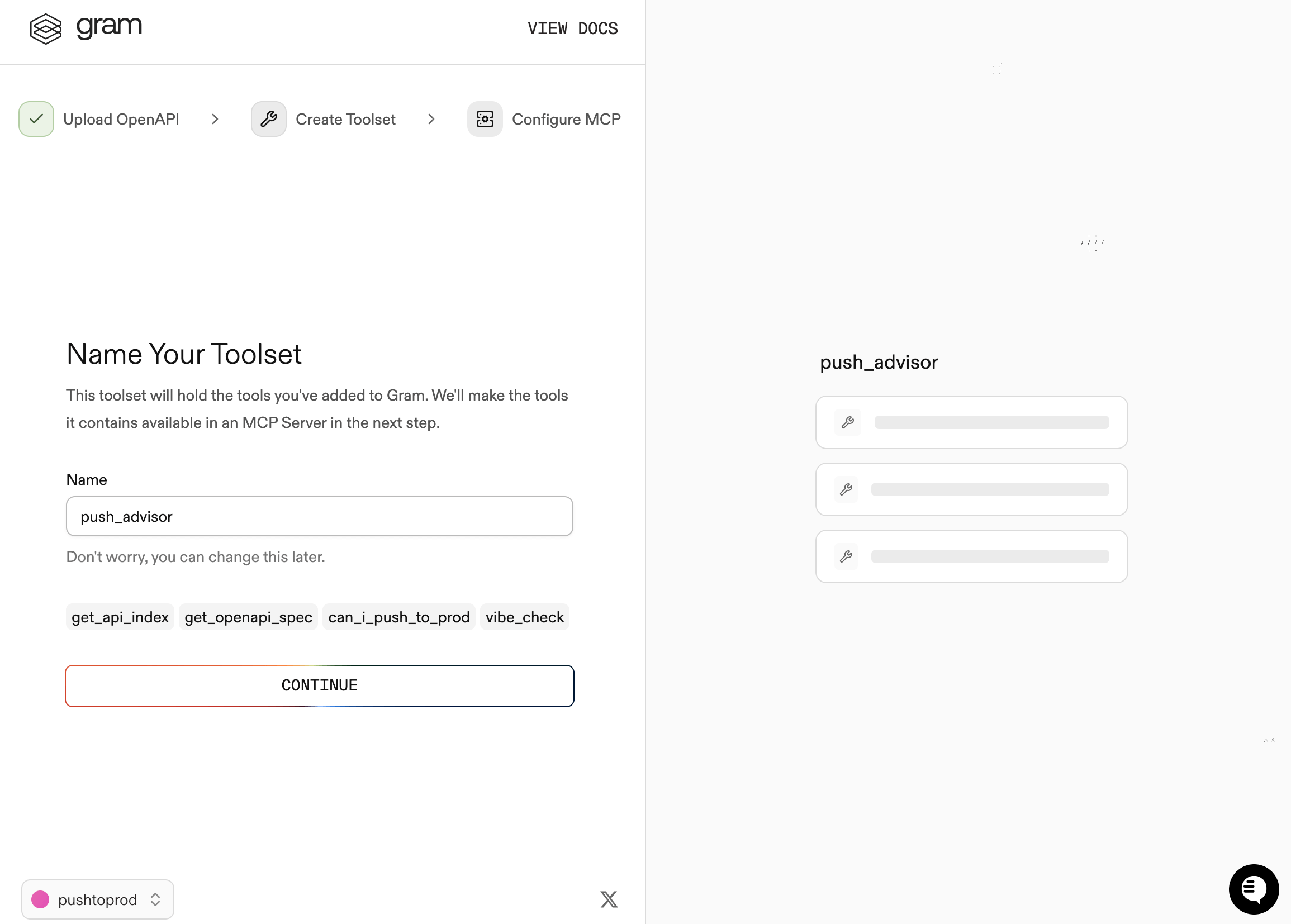
Notice that the Name Your Toolset dialog displays the names of the tools that Gram will generate from your OpenAPI document.
Step 3: Configure MCP
Enter a URL slug for the MCP server (for example, zapier-push-advisor) and click Continue.
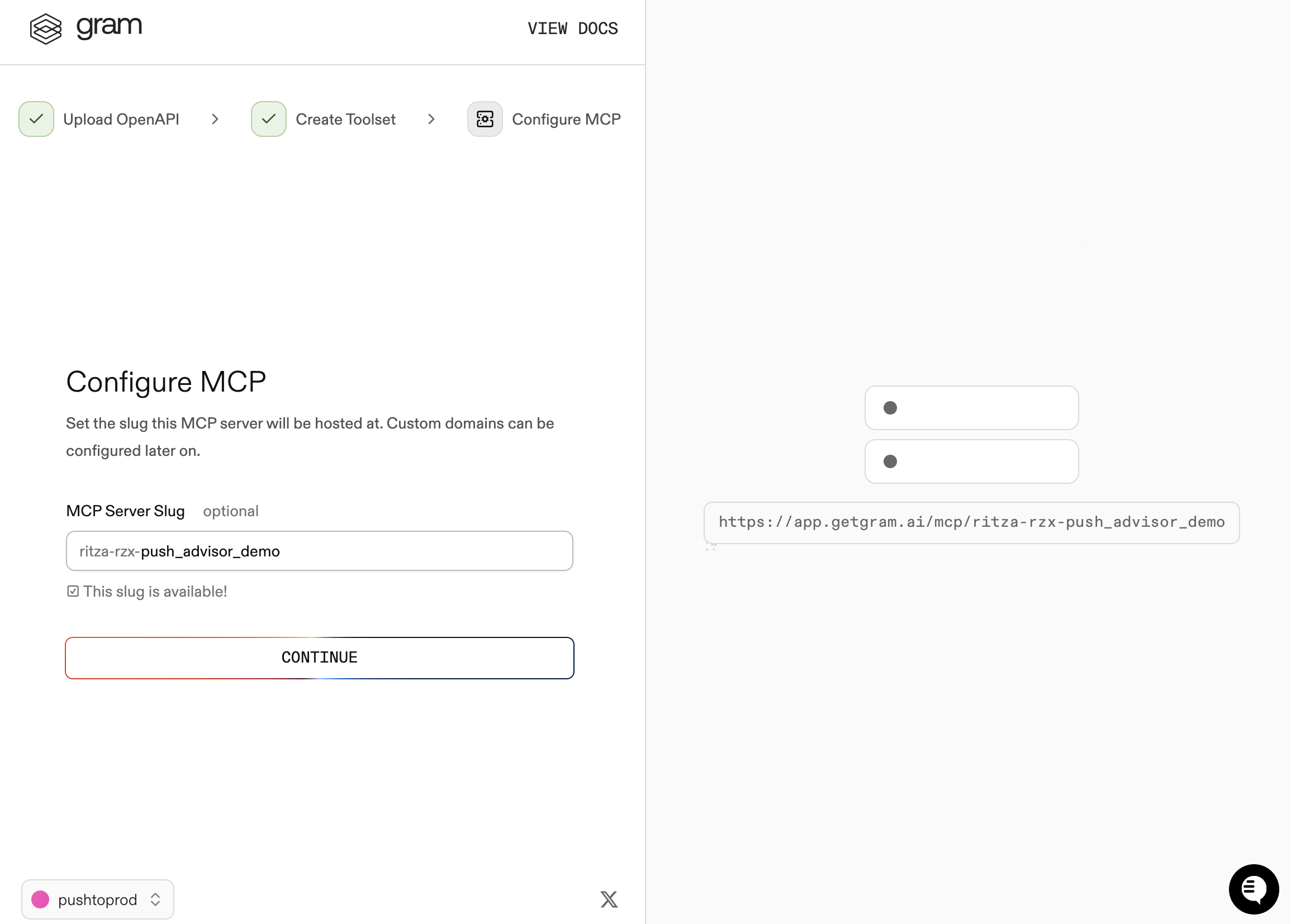
This finalizes the creation of the toolset from the OpenAPI document.
Step 4: Test the toolset
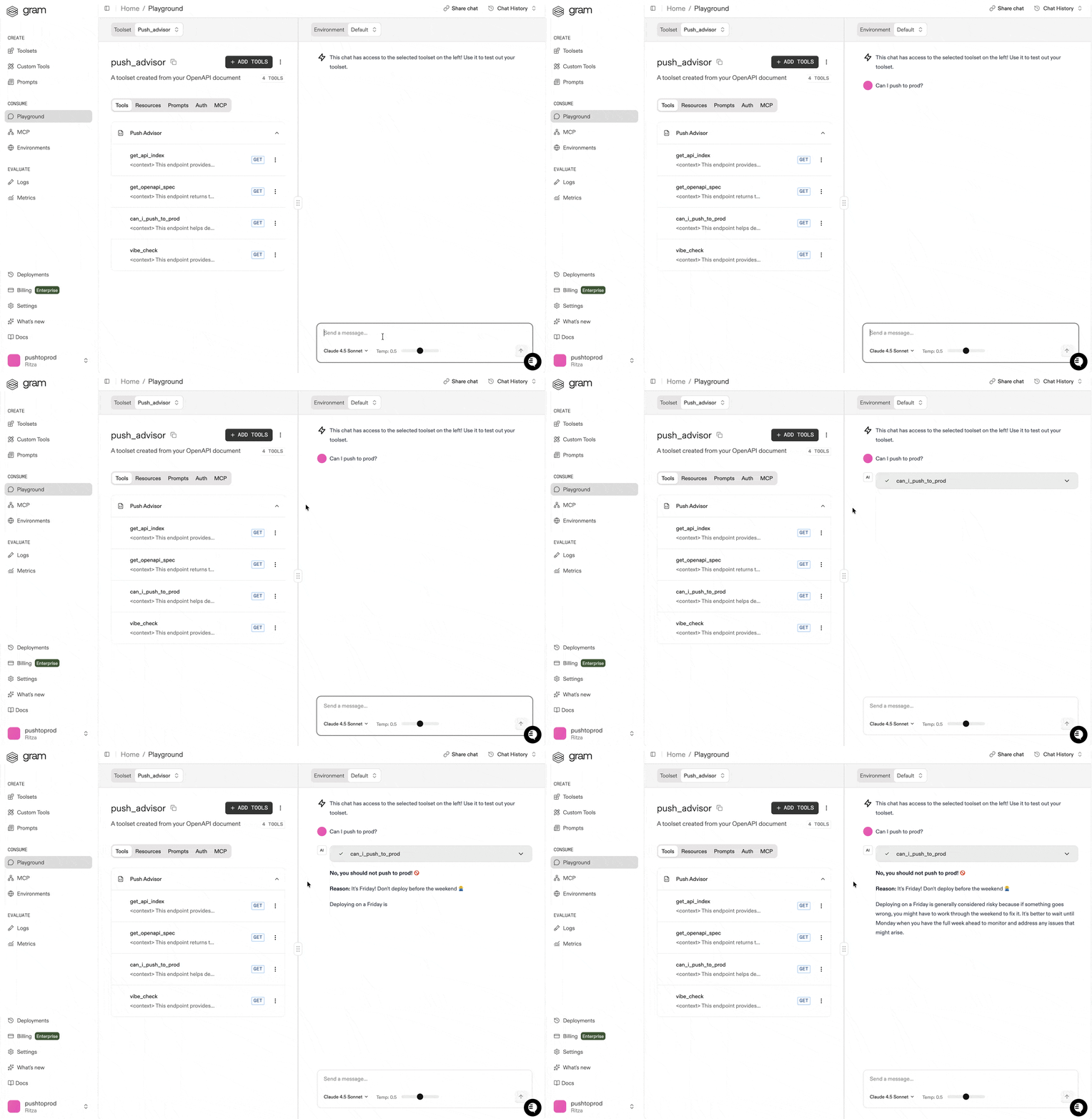
We can test that our tools work correctly using the Gram Playground. Navigate to the Playground page. The chatbot page lists all our available tools on the left.
Ask some questions in the chat that would trigger tool calls. For example:
Can I push to prod?The AI determines the correct tool to call and returns a response based on the answer data.
Creating an API key
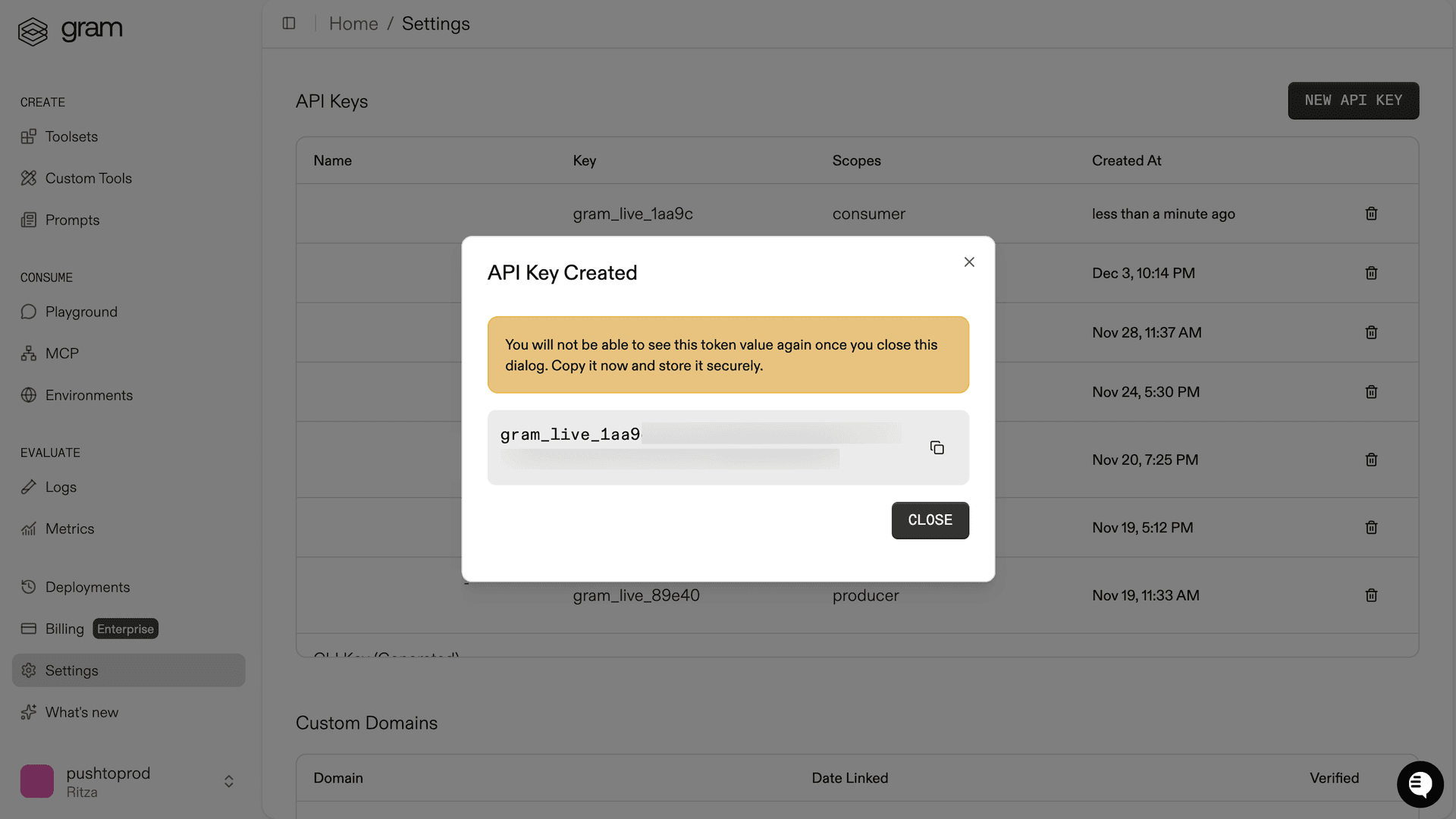
Navigate to Settings and click New API Key. Name your key and click Create. Then copy the key and store it somewhere secure (we’ll use it later to integrate with Zapier).
Publishing an MCP server
Go to the MCP tab and click on your toolset. Click Enable, then scroll down and change the visibility to Public.

Finally, copy the Hosted URL from the configuration (for example, https://app.getgram.ai/mcp/your-mcp-slug). We’ll use the URL along with our API key to integrate with Zapier.
Creating a Zap with Gram MCP
Let’s create a Zap that interacts with our user through Slack and makes use of our MCP toolset.
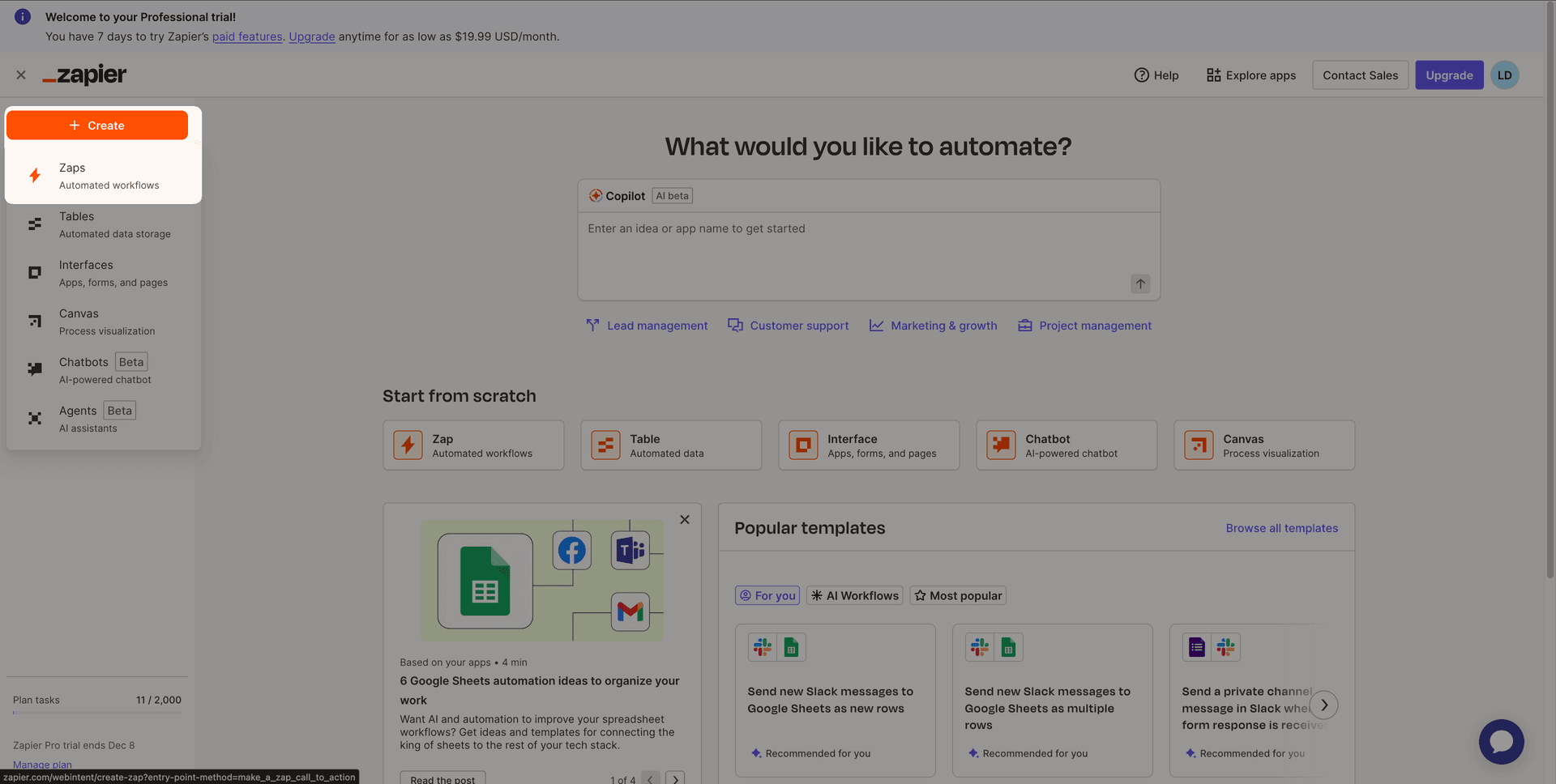
To get started, sign in to your Zapier account, click + Create, and choose Zaps.
Step 1: Create the Trigger
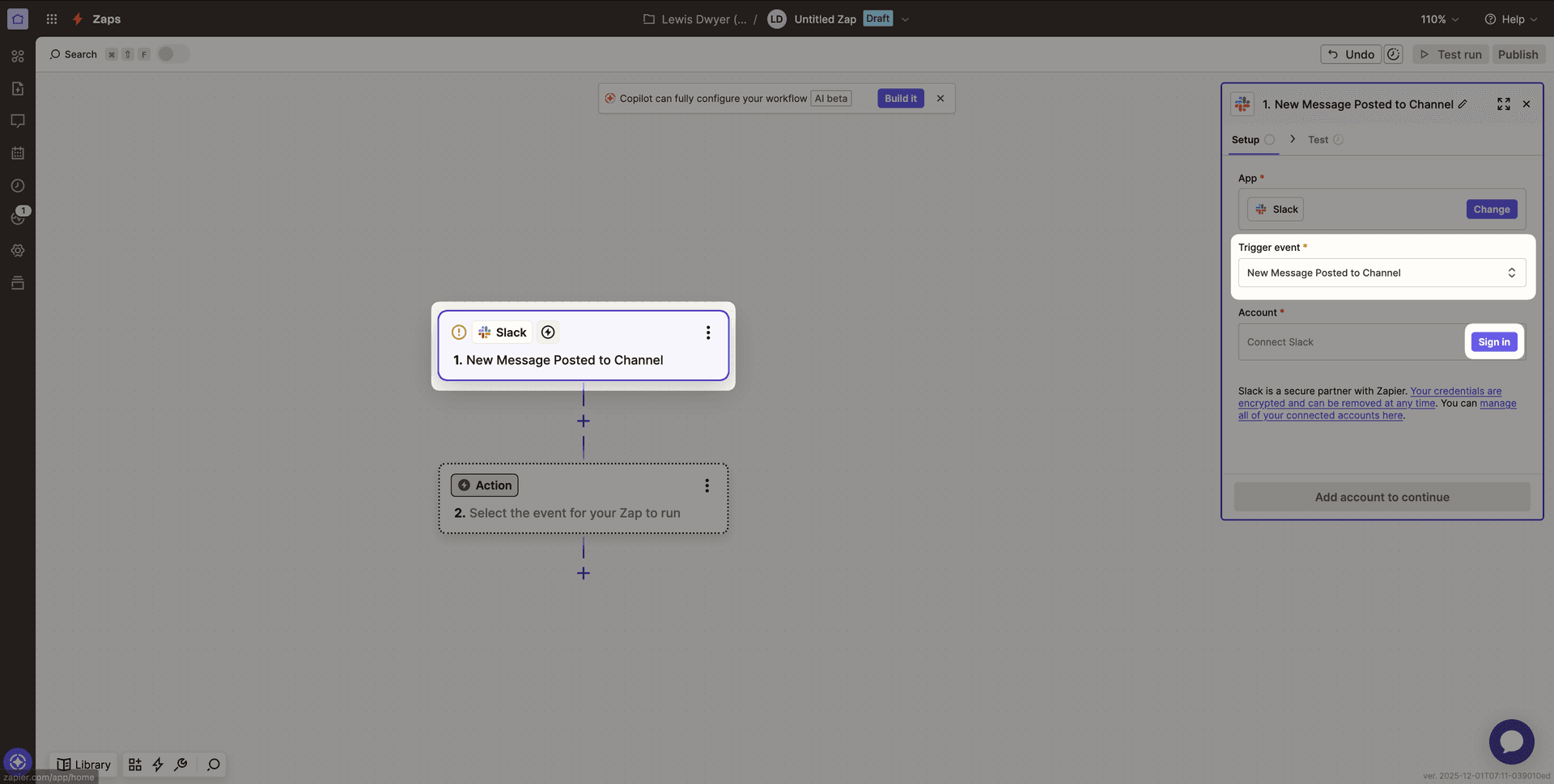
Click the placeholder for the trigger to open the trigger configuration screen and select Slack from the options list.
For the Trigger event select New Message Posted to Channel, then sign in to your Slack account under Account and press Continue.
Next, in the Configure tab, select your preferred Channel from your Slack workspace and click Continue.
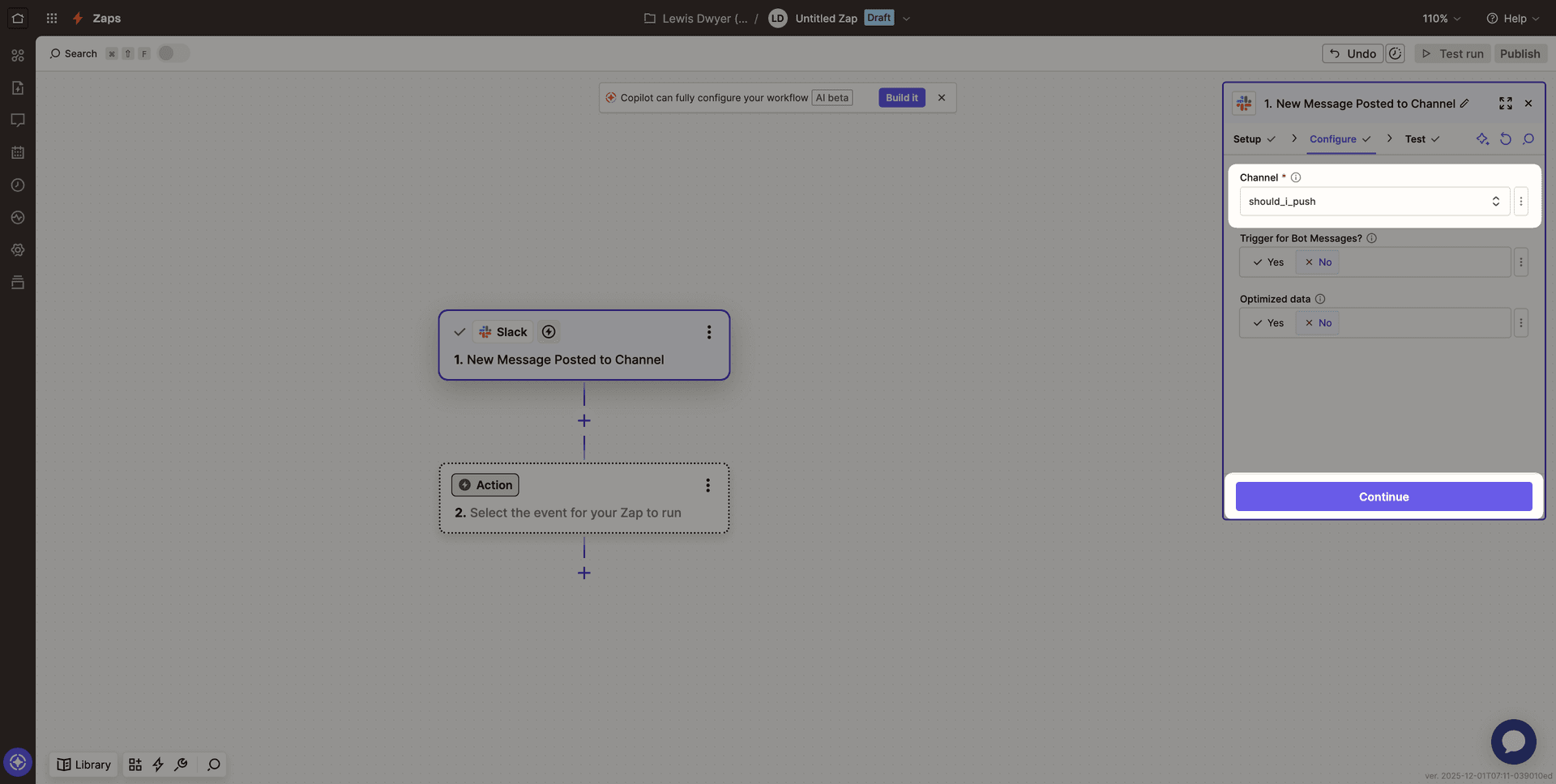
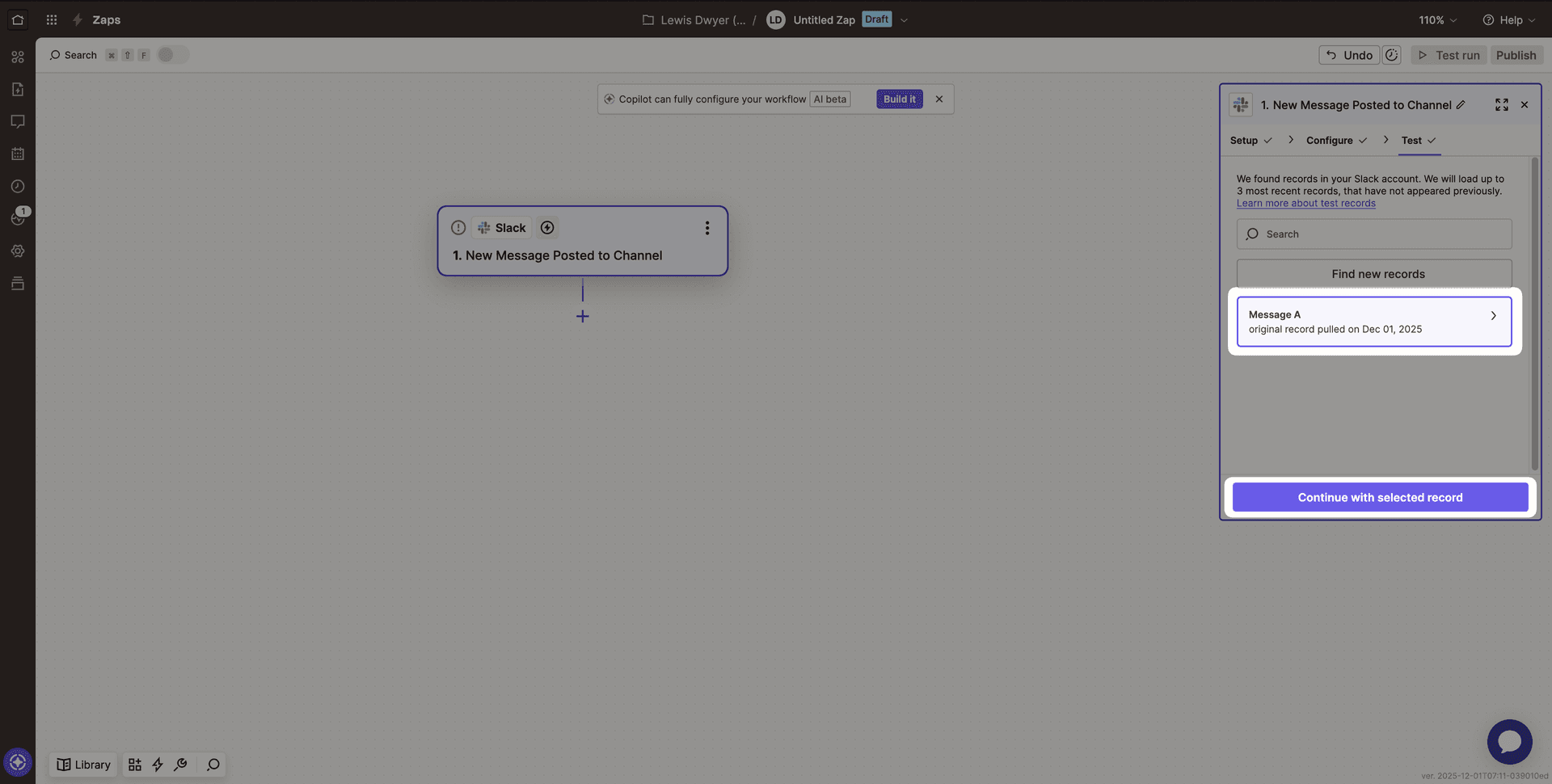
Before testing the trigger, open your chosen Slack channel and send a message that we can use for the remaining setup (for example, “Should I push?”). Then test the trigger, select that message from the recent records list, and click Continue with selected record.
Step 2: Add the MCP Client action
From the Actions menu, search for MCP and choose MCP Client.
Select Run Tool as the Action event.
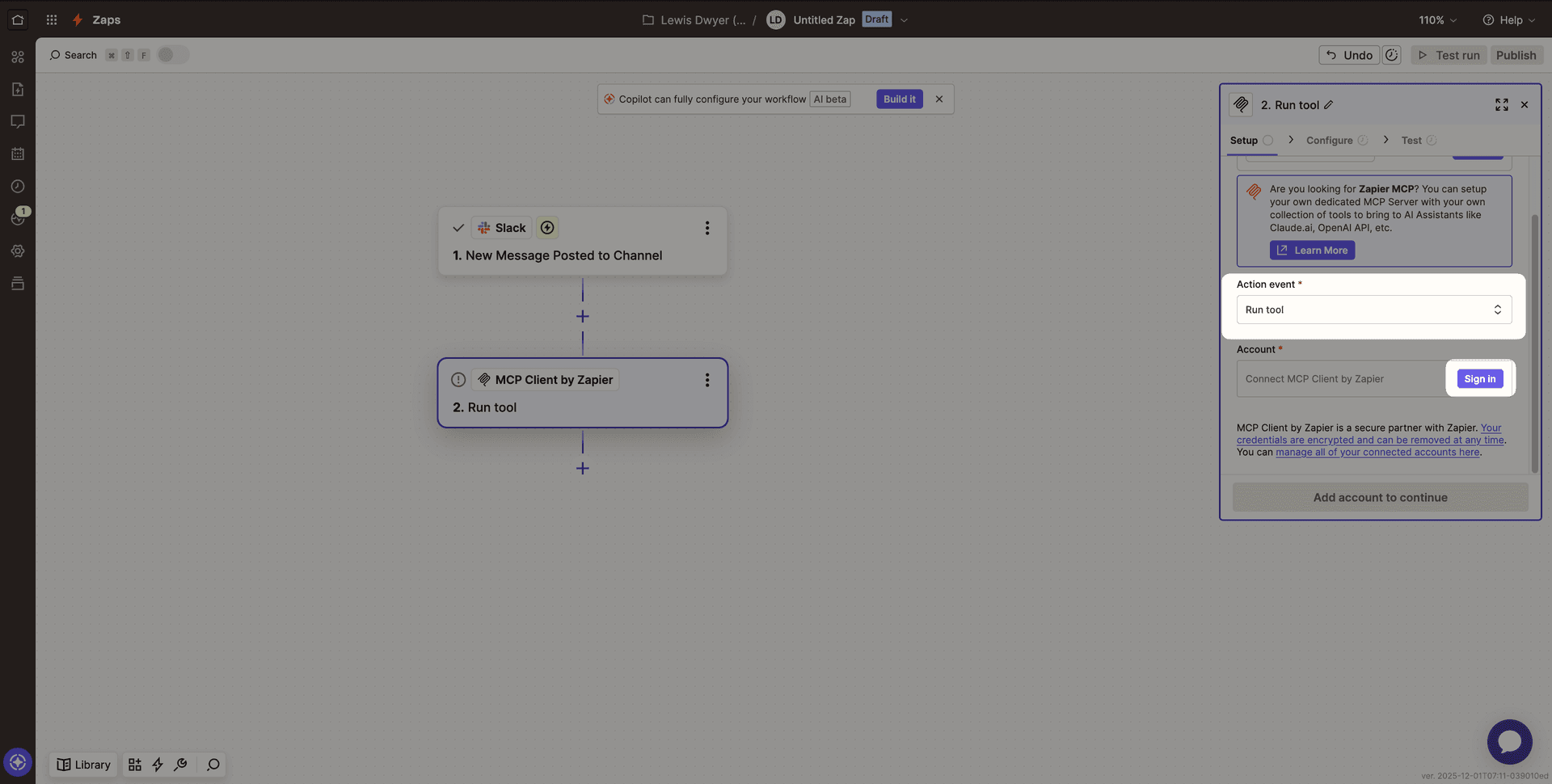
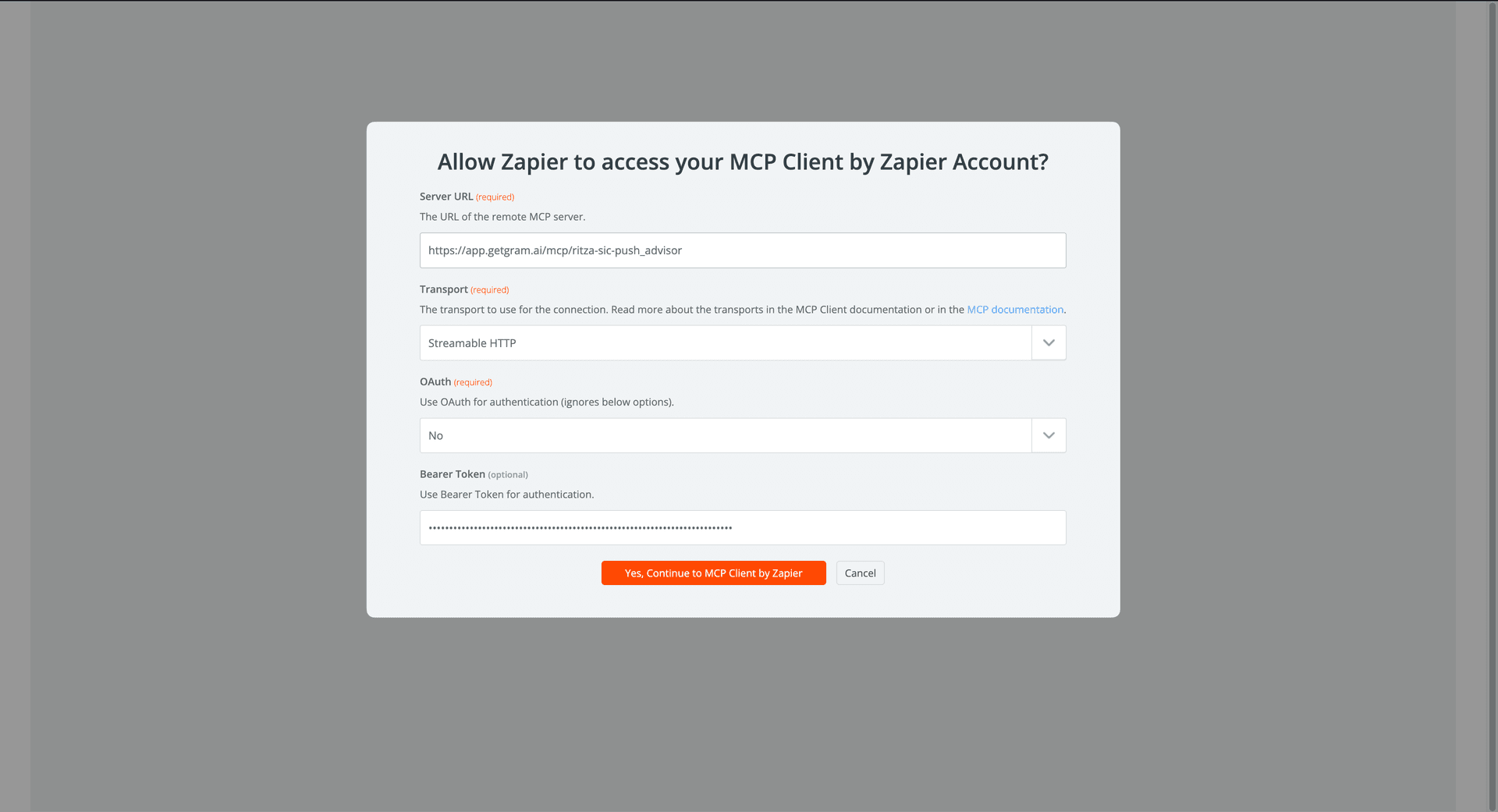
Click Sign in under Account and enter your Gram Server URL and Bearer Token (this is the API key you copied from Gram earlier). Set Transport to Streamable HTTP and set OAuth to No, then click Yes, Continue to MCP Client.
Click Continue. In the Configure section, click the Tool dropdown to load the list of tools from your Gram server. Select the can_i_push_to_prod tool.
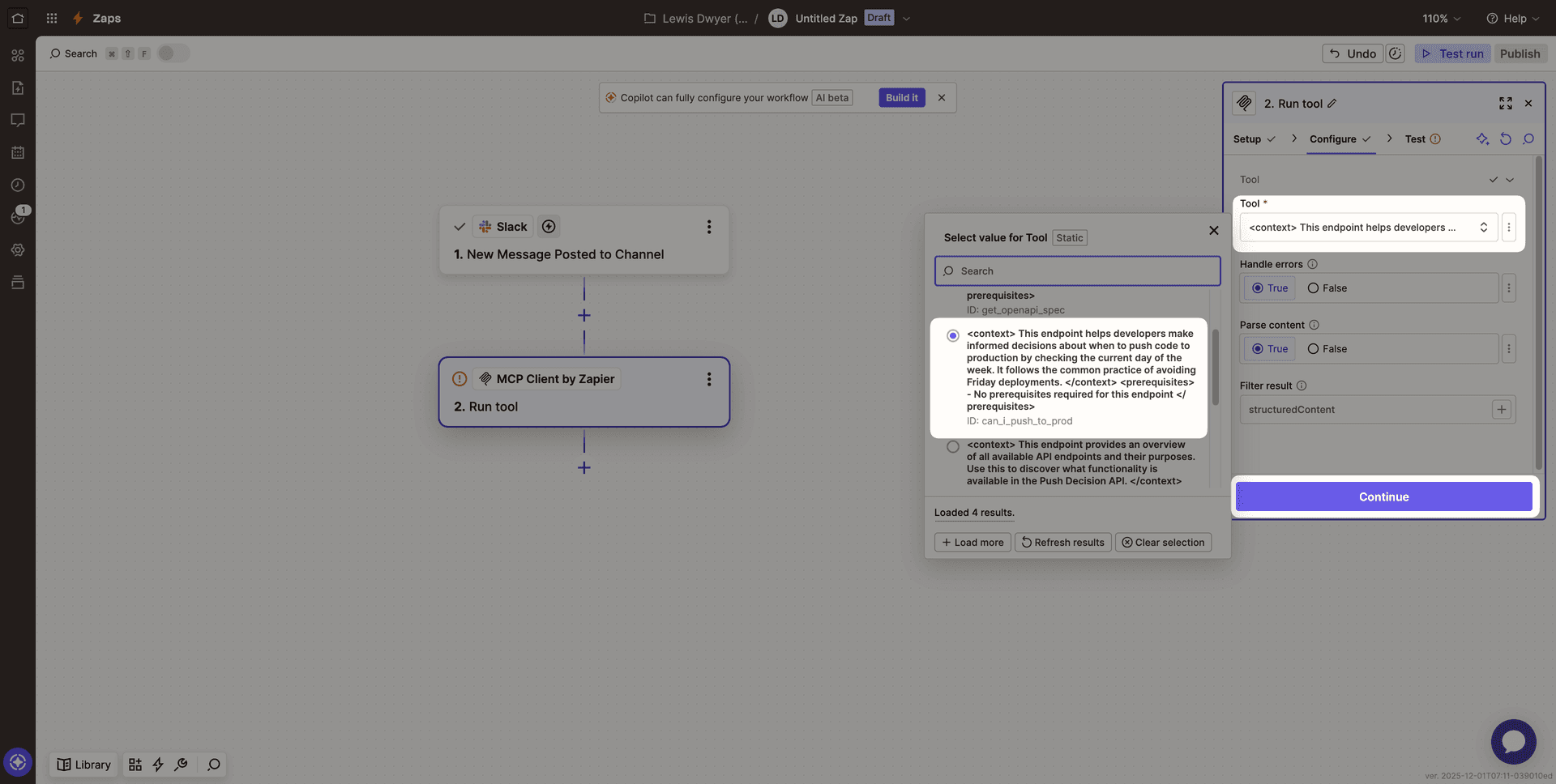
Click Continue and then Test step. You should see a successful response from the Gram MCP server containing the tool result.
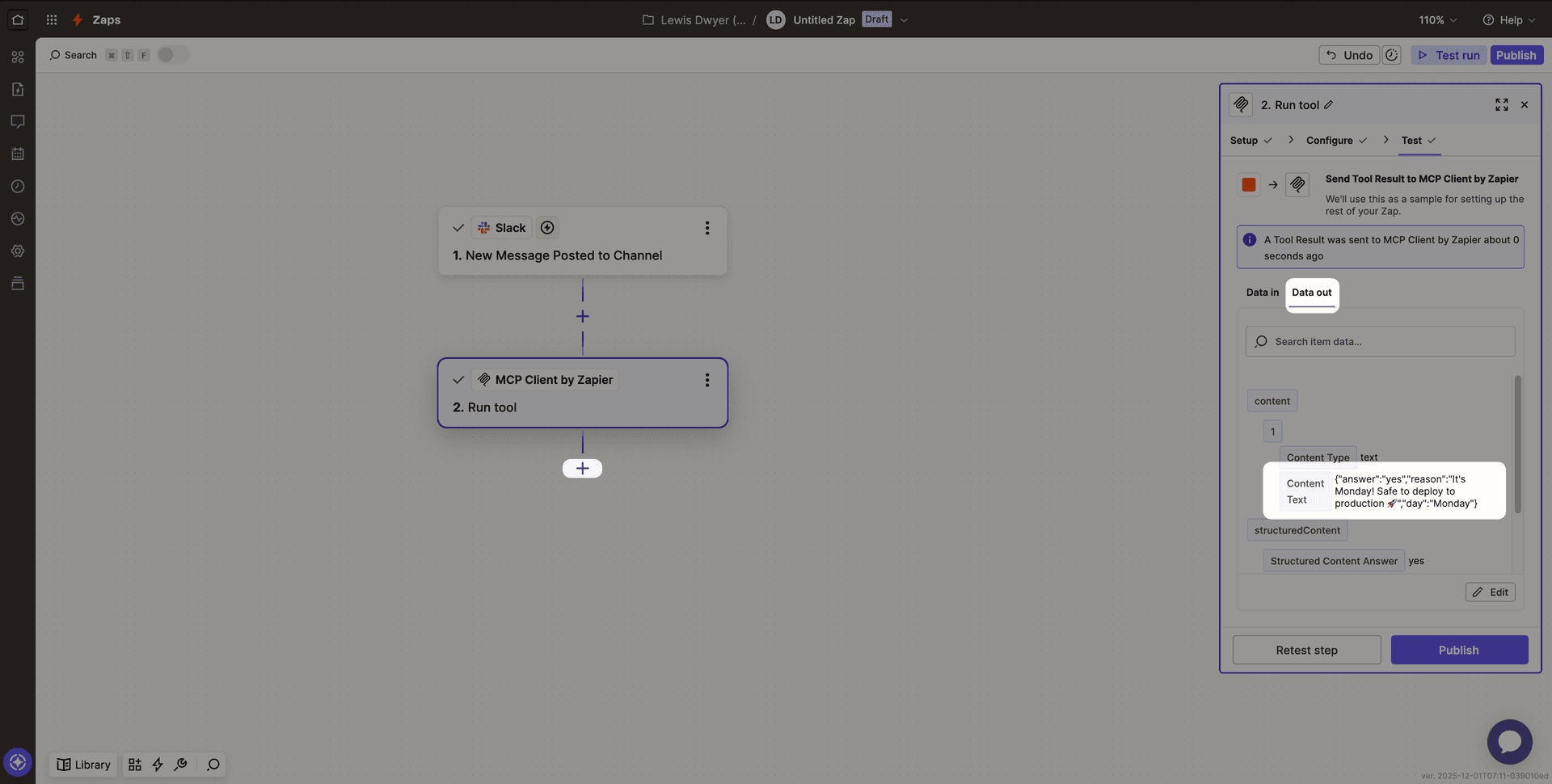
Once you’re confident that you’ve connected the Gram server, click the + button to add another action.
Step 3: AI response
To demonstrate how we can integrate an LLM into our workflow using Zapier, we will add an AI by Zapier action. We will pass it the result of our MCP tool call and get a customized response.
When we add the action, we are presented with a prompt builder screen. Here we can customize our AI Model to do exactly what we want.
Select Custom prompt for Build mode and select your preferred Model. Under Input fields, press + Add field. Give the field a name, then under Field value, press the + sign, and find the Structured Content Reason field returned from the MCP tool. Finally, set the Content Type to Text and press Save.
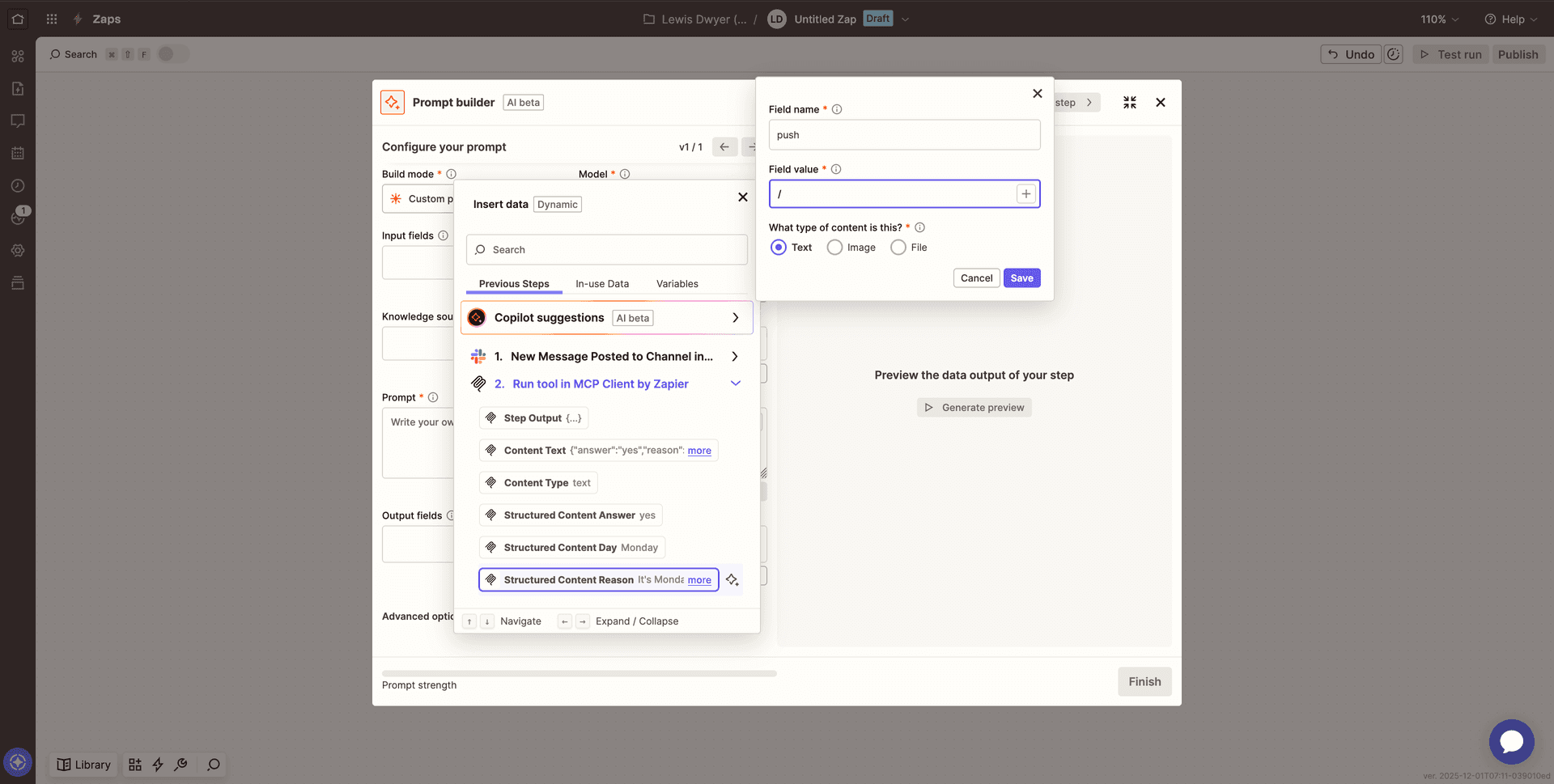
In the Prompt field, instruct the bot to provide a friendly response to questions about pushing to production, making sure to use the result of the tool. A stronger prompt will cause the AI to behave more predictably.
For example, this is a reasonably strong prompt:
You are a helpful and friendly DevOps assistant for a software engineering team. A user has just asked if it is safe to push to production.

You will be provided with the raw output from the "Push Advisor" tool (should_i_push), which checks if we are allowed to push to production.

Your task is to write a concise Slack reply based on this status:
1. If the status is POSITIVE (e.g., "yes", "go for it", "safe", "chill"):
   - Give them the green light.
   - Be encouraging and enthusiastic e.g., "All systems go! 🚀" or similar.

2. If the status is NEGATIVE (e.g., "no", "hold", "unsafe", "bad vibes"):
   - Warn them strictly not to push.
   - Be polite but firm (e.g., "Hold your horses! 🛑 The vibes are off.").

3. If the status is unclear:
   - Advise caution.

**Rules:**
- Keep the message short (under 2 sentences).
- Do not mention "JSON" or internal data structures.
- Use an appropriate emoji.
- Address the team directly.
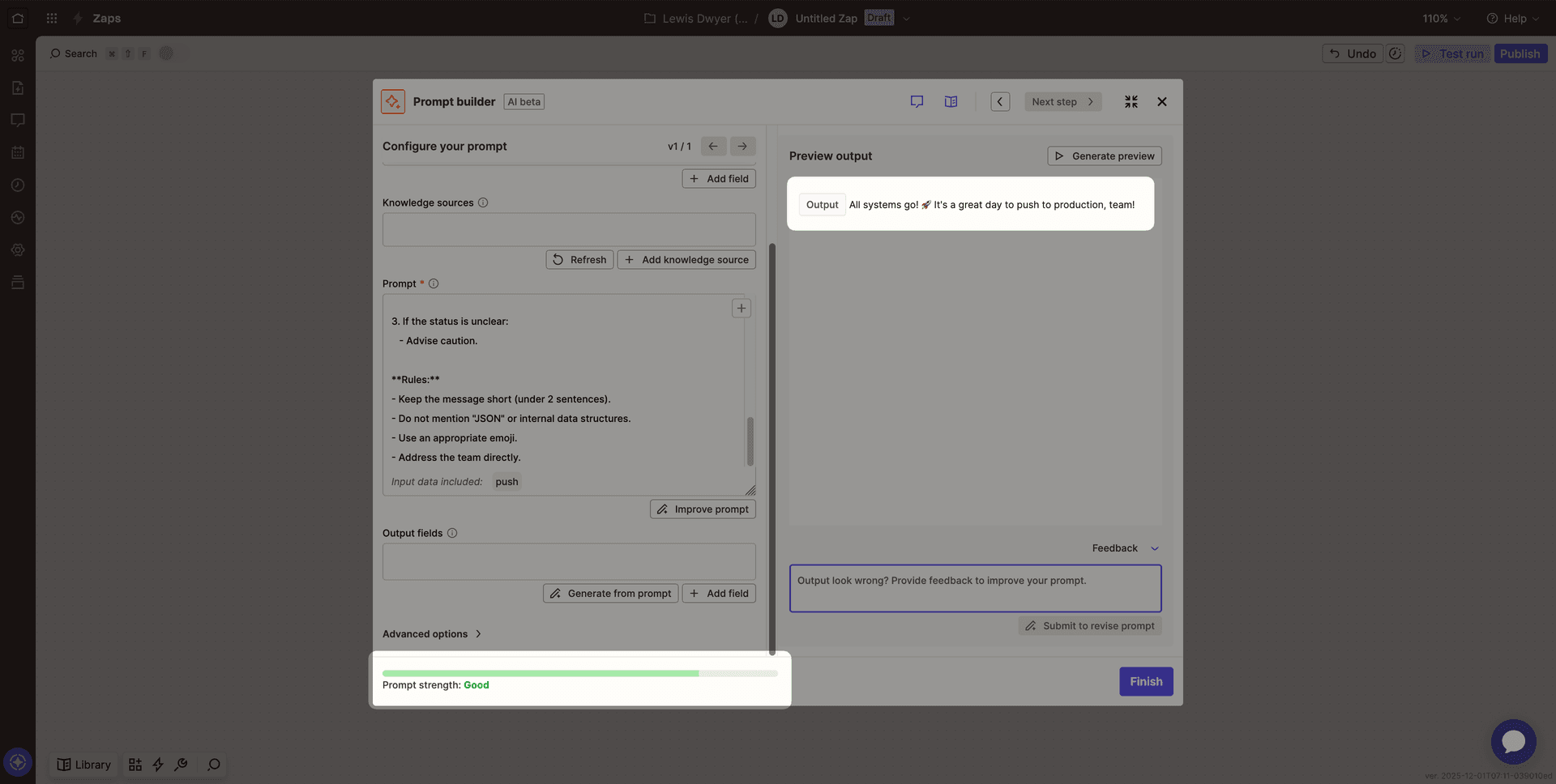
Zapier will give you an estimation of your prompt’s strength and allow you to generate a sample preview response, so you can see whether you’re satisfied with its behavior. Once you’re happy with the prompt, click Finish.
Step 4: Reply in Slack
Add a final action step and select Slack. Choose Send Channel Message as the Action event and click Continue.

In the Channel field, select the same channel as the trigger. In the Message Text field, insert the output from the AI by Zapier step. Make sure Send as a bot? is set to Yes. This ensures that the bot message doesn’t kick off the trigger action, causing a loop.
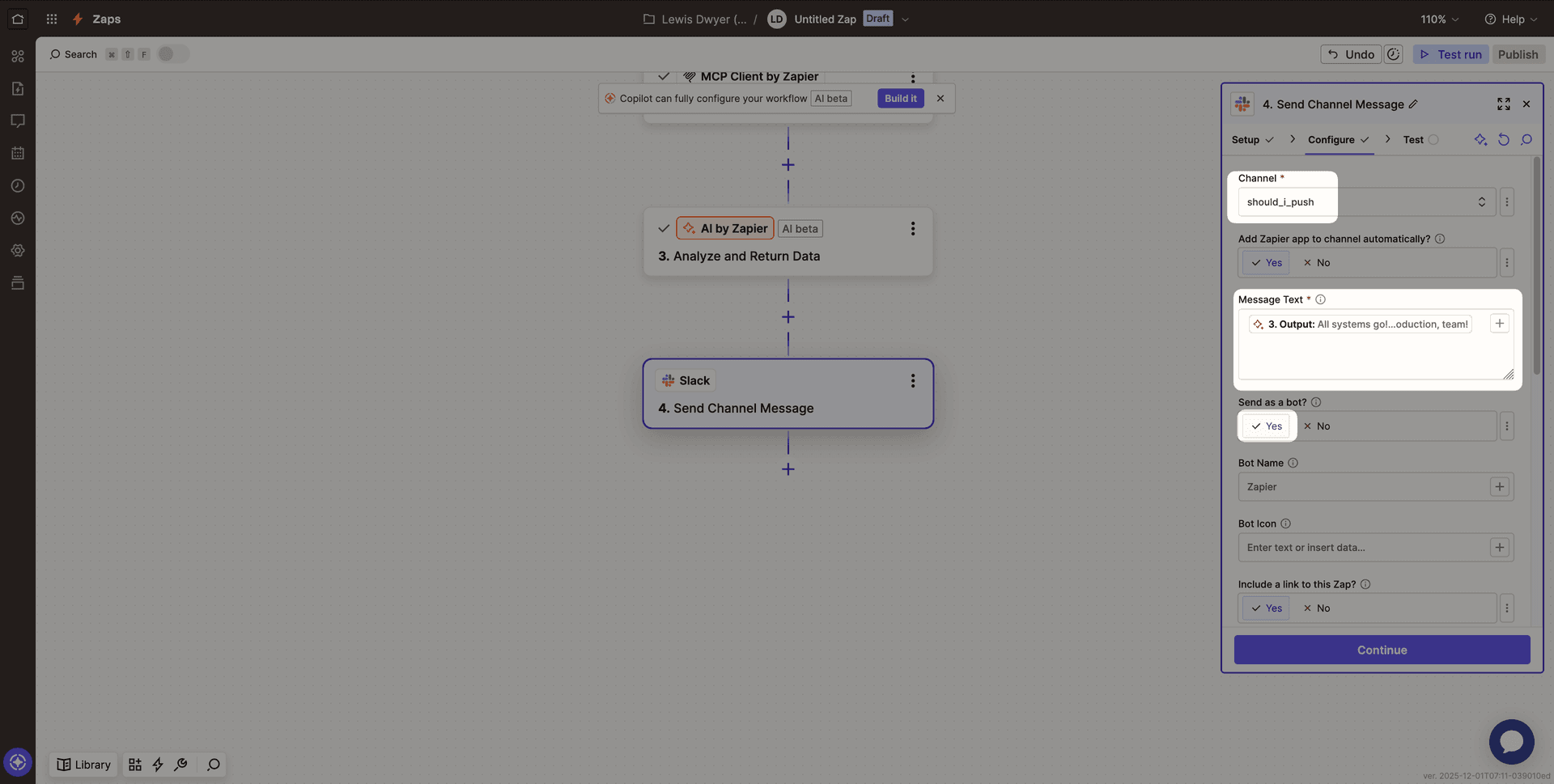
Click Continue and test the step to send a message to Slack.
Step 5: Deploy and test your Zap
To deploy and enable your Zap, first rename it something relevant, then click Publish.
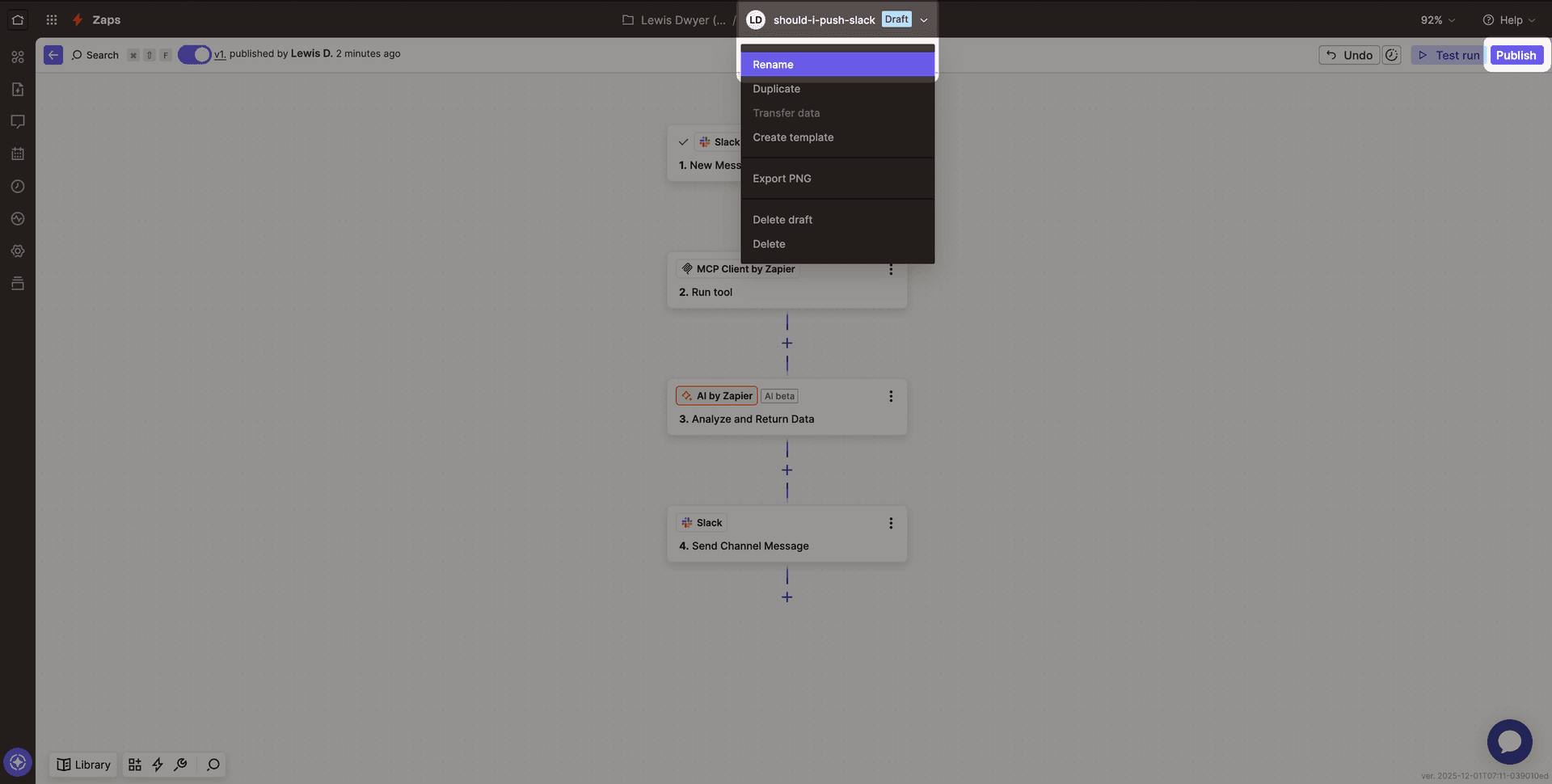
Your Zap is now live, and you can test it by sending a message in your Slack channel.

What’s next
You have successfully connected Zapier to a Gram-hosted MCP server. This allows you to bring any API or tool hosted on Gram into your Zapier automation workflows.
When you add more tools to your Gram toolset, they become available in the Run Tool dropdown in Zapier.
Ready to build your own MCP server? Try Gram today and see how easy it is to turn any API into agent-ready tools.
Last updated on